Start a dev environment.
Launch local services, start a VM, open project tools, and get your workspace ready from the menu bar.
Mac Menu Bar Automation
ScriptAutomator keeps your Bash scripts and AppleScript files in one local library, then runs them instantly from the macOS menu bar.
Everyday Wins
Keep the useful scripts you already trust, add new ones when a routine appears, and launch them without opening Terminal or hunting through folders.
Launch local services, start a VM, open project tools, and get your workspace ready from the menu bar.
Run scripts for Derived Data, cache cleanup, and disk maintenance without retyping risky commands.
Use AppleScript to arrange windows, trigger app commands, or restore common workspace layouts.
Toggle sleep prevention, background workflows, or end-of-day cleanup tasks with one click.
Menu Bar First
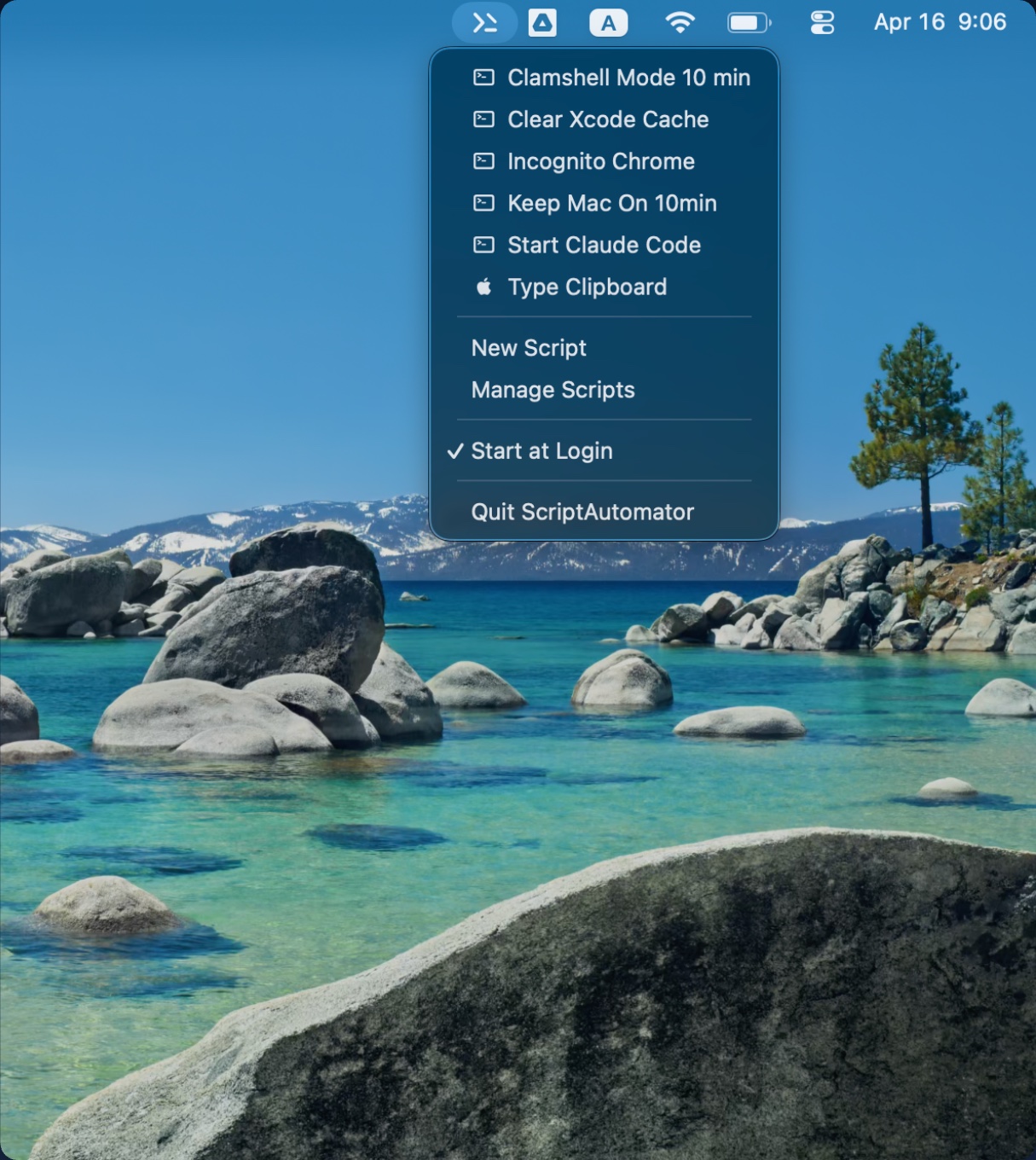
Saved scripts appear in an alphabetical menu with type markers and running counts. Click once, keep working, and get a compact HUD when the run finishes or fails.
User-Created Scripts
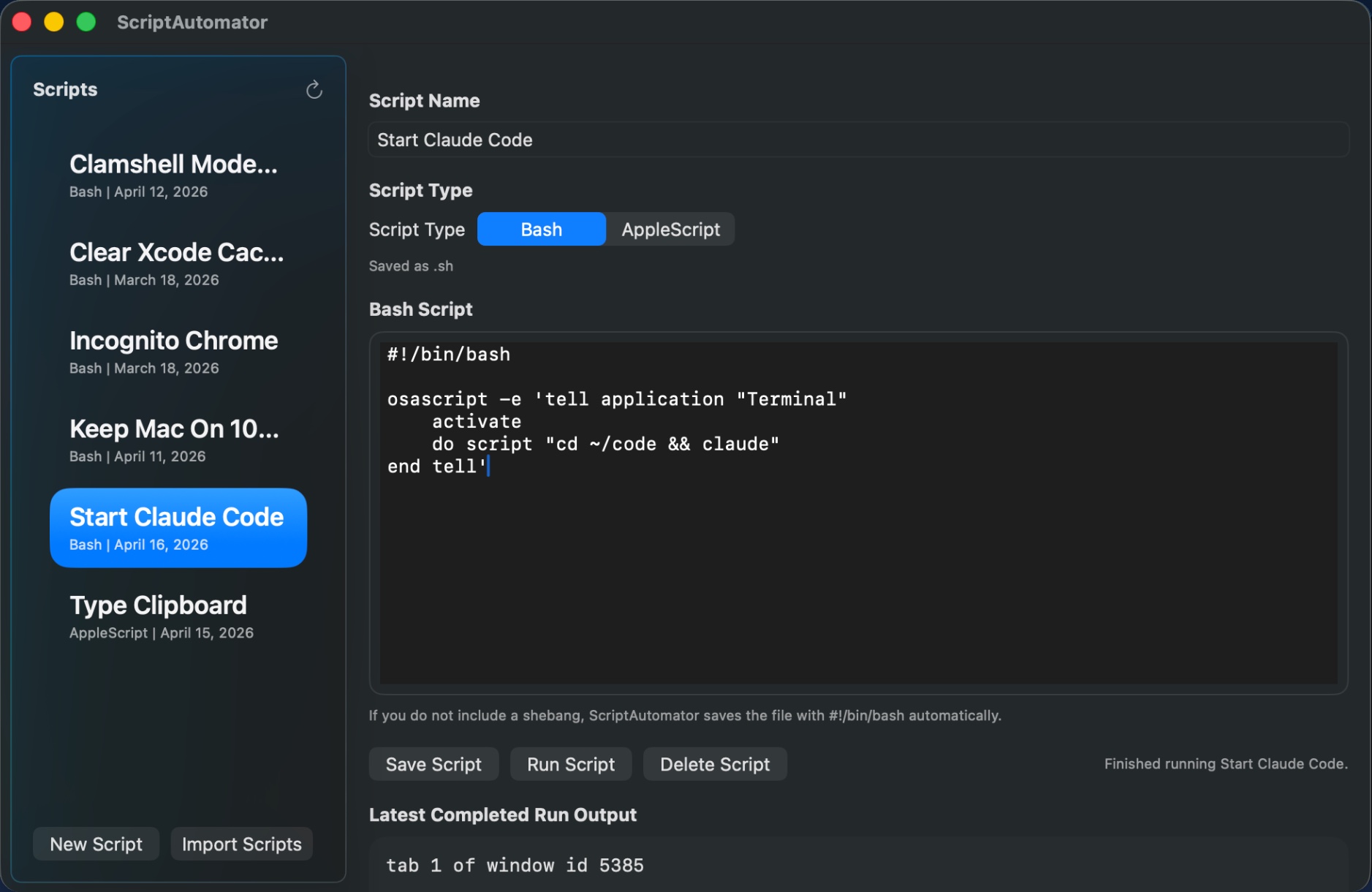
The management window lets you write Bash or AppleScript files from scratch, import the scripts you already use, and inspect the latest completed run output for the selected script.
Core Features
Fast Launch
No terminal setup, no launcher search. Your saved scripts sit in the macOS menu bar and stay available after login.
Two Script Types
Choose the right tool for each job, from shell commands and file operations to UI automation across Mac apps.
Batch Import
Select multiple .sh or .applescript files, copy them into the
managed library, and normalize permissions automatically.
Focus Restore
For menu-triggered AppleScripts, ScriptAutomator restores the previously active external app before running scripts that automate UI input.
Run Feedback
Menu runs report success or failure without disruptive pop-ups, while the editor keeps the latest completed output for review.
Local By Design
Script files are plain text in the app-specific Application Scripts folder and execute locally under macOS sandbox rules.
How It Works
Start a new Bash or AppleScript file, or import the scripts you already use.
Pick any saved script from the dropdown. Multiple runs can overlap when you need them to.
Open Manage Scripts to adjust code, rename scripts, switch type, or inspect recent output.
#!/bin/bash
open -na "Google Chrome" --args --incognito
echo "Chrome opened in Incognito mode"#!/bin/bash
osascript \
-e 'tell application "Terminal"' \
-e 'activate' \
-e 'do script "cd ~/code && claude"' \
-e 'end tell'Support
Reach out with bug reports, questions, or feature requests. Including your macOS version, ScriptAutomator version, script type, and a short description of the failing script helps us reproduce issues faster.
FAQ
ScriptAutomator stores executable scripts in the app-specific Application Scripts
folder for ai.tutelon.ScriptAutomator, using plain text
.sh and .applescript files.
Yes. You can import one or more Bash or AppleScript source files into the managed script library and keep editing them from the app.
No. Script execution is local on your Mac. Your own scripts may make network requests if you write them to do that, but ScriptAutomator does not upload your script contents.
macOS controls access to script storage, Accessibility, and Automation. ScriptAutomator requests the permissions needed to save scripts and run AppleScripts that control other apps.